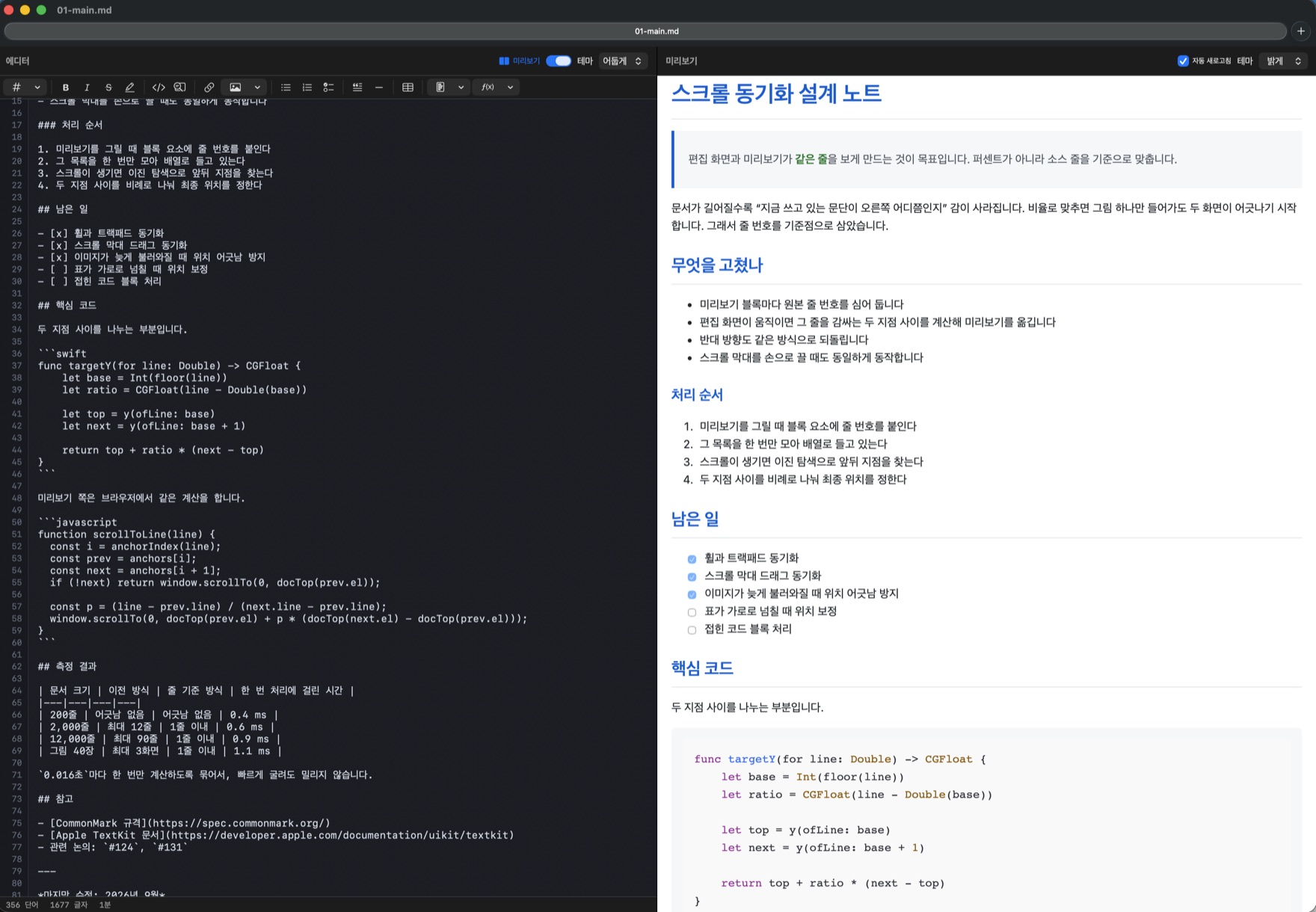
Line-level scroll sync
The preview tracks the line you are looking at. Wheel, trackpad, and dragging the scrollbar itself all stay in step — no drift between the two panes.
Built so you never have to stop writing just to check how it looks.
The preview tracks the line you are looking at. Wheel, trackpad, and dragging the scrollbar itself all stay in step — no drift between the two panes.
Mermaid flowcharts, PlantUML sequence diagrams, KaTeX math, and syntax highlighting render directly in the preview. No extra tool to open.
The same tabs you know from Safari and Finder. Cmd+T for a new tab, drag a tab out for a new window, Window > Merge All Windows to bring them back.
Jump anywhere from the heading list (Shift+Cmd+O). Search runs in both the source and the rendered preview, with matches highlighted.
Your file saves itself moments after you pause. If another app edits the same file, you are told and asked whether to reload it.
Save exactly what you see in the preview as a PDF or an HTML file, diagrams and math included.
Light and dark themes can be chosen separately for the editor and the preview.
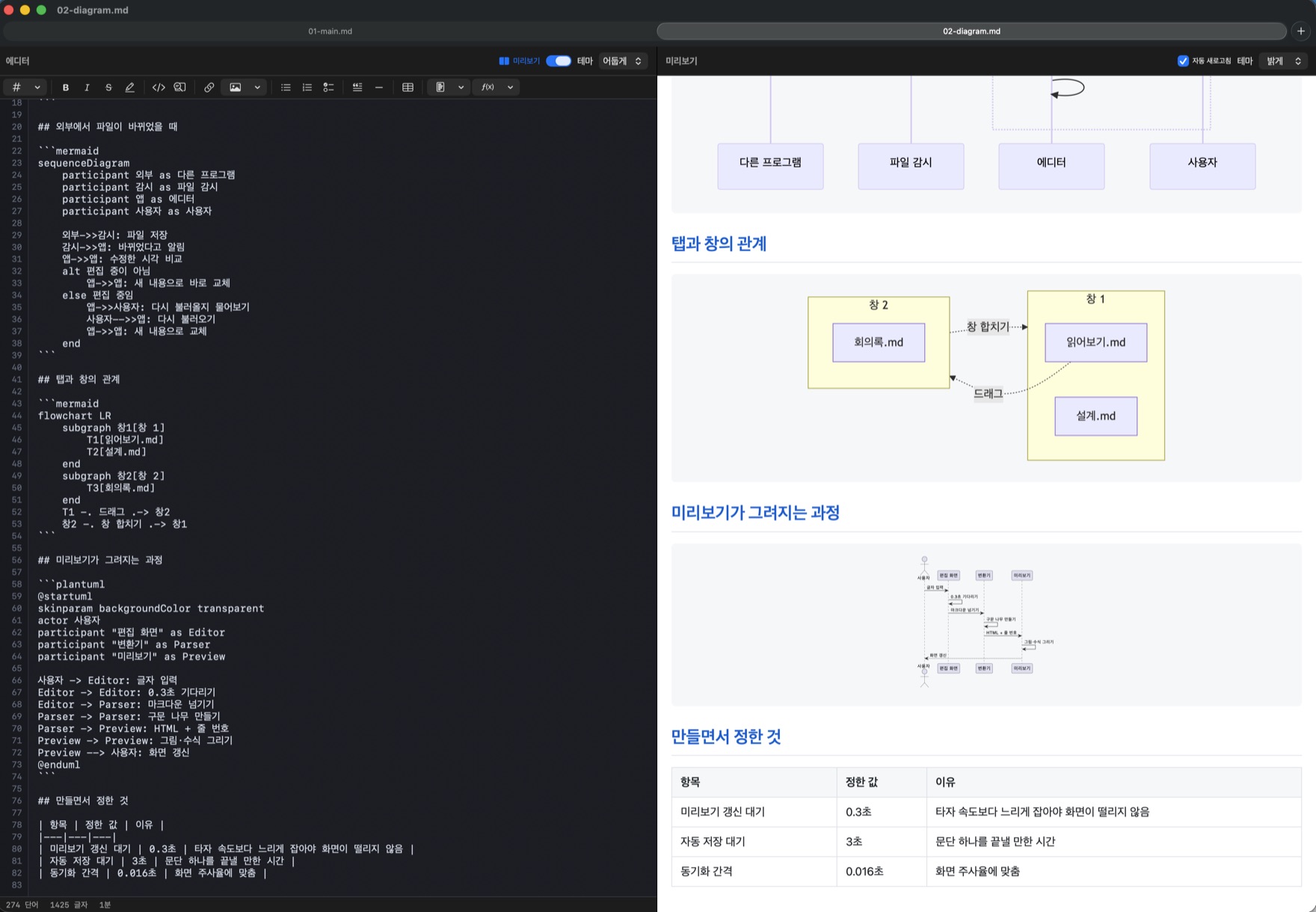
Mark a code block as mermaid or plantuml and the preview turns it into a diagram, non-Latin labels included.
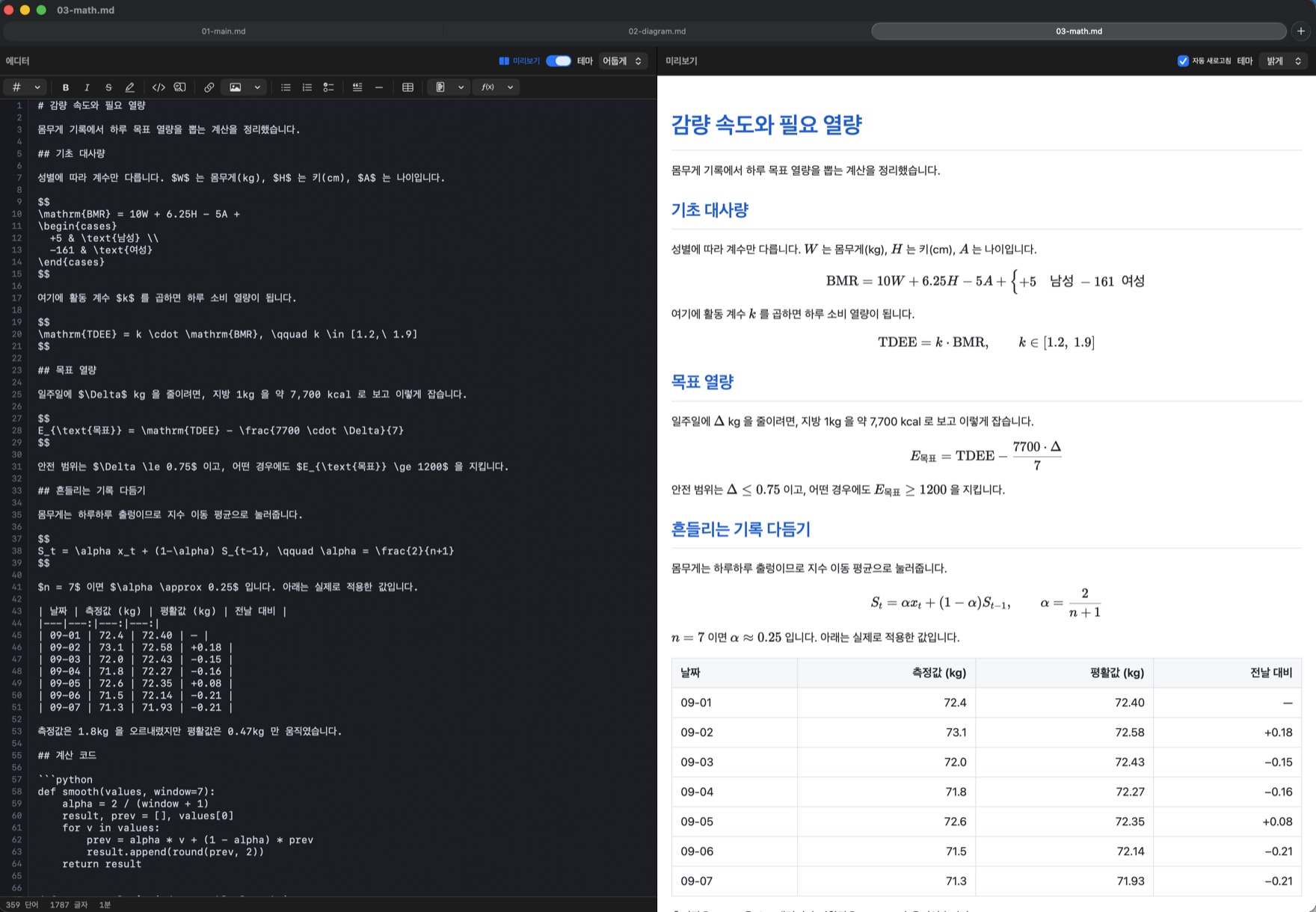
Keep them in tabs and switch as you go. KaTeX formulas and tables render in the preview too.
Select a markdown file in Finder, press the space bar, and the fully rendered document appears without opening the app. Available as an in-app purchase.
Menus, settings, and alerts are all translated. Pick one in Settings > General; the default follows your system language.
No account, no sign-in. Documents are never uploaded and no usage data is collected. The one exception is PlantUML: rendering a diagram sends that diagram code to a rendering service.
The app is free. Only the Quick Look full preview — pressing space on a markdown file in Finder — is an in-app purchase.
macOS 13 (Ventura) or later. It runs on both Apple Silicon (M1/M2/M3) and Intel Macs.
Yes. Mark a code block as mermaid or plantuml and the preview renders it as a diagram. KaTeX math and syntax highlighting are supported as well.
No. Files stay on your Mac. There is no account, no sign-in, and no analytics. The single exception is PlantUML, where the diagram code is sent to a rendering service to produce the image.
It ships in Korean, English, Japanese, and Simplified Chinese. Choose one in Settings > General; the default follows your system language. Relaunch the app to apply the change.
Yes. In Finder, right-click a .md file, choose Get Info, pick this app under Open with, then click Change All.
Use File > Export as PDF and you get exactly what the preview shows. Export as HTML is available too.
MarkChartEditor is the registered Mac App Store name. The source repository is named MarkdownEditor — same app.